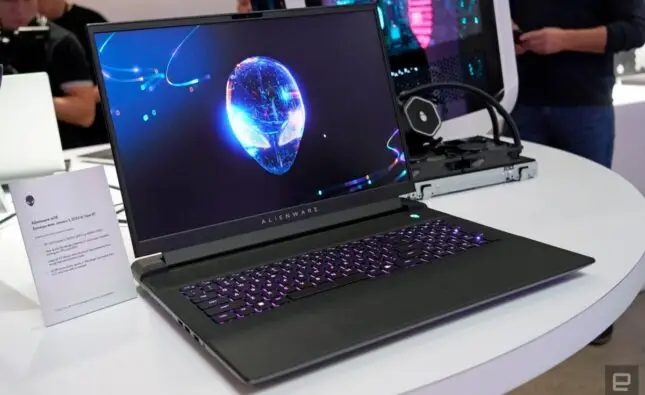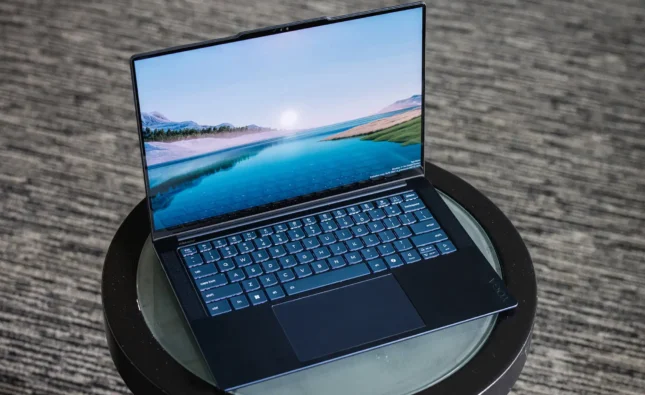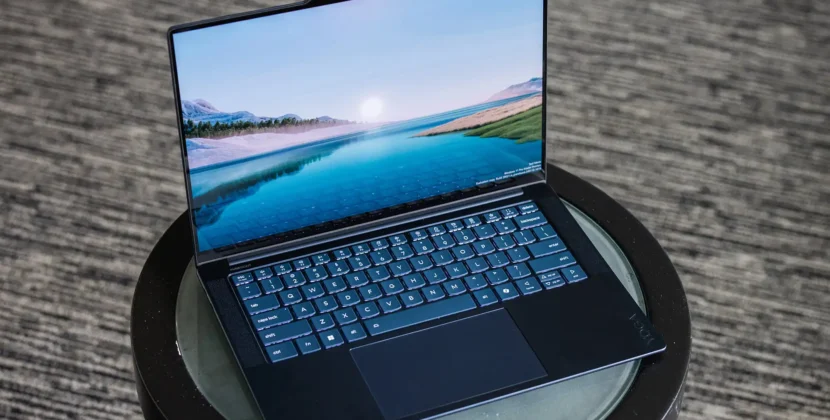



A laptop is one of the most important tools for students, professionals, and everyday users. Whether you use it for work, study, entertainment, or gaming, your laptop’s performance and lifespan depend heavily on how well you maintain it. Over time, dust, unnecessary files, and overheating can slow down your system. But with the right habits and a little care, you can keep your laptop running smoothly for years. In this article, we’ll explore simple yet effective laptop maintenance tips to ensure your device performs like new.
Regular Cleaning Keeps Performance High
Physical cleaning is one of the easiest yet most overlooked steps in maintaining a laptop. Dust can block air vents and cause your laptop to overheat, while grime on the keyboard and screen can make daily use unpleasant. To clean your device safely, first turn it off and unplug it. Use a soft microfiber cloth to wipe the screen and a can of compressed air to blow out dust from vents and between keys. Avoid using household cleaners or spraying liquids directly on the screen.
Also, periodically open the laptop’s back panel (if you’re comfortable doing so) to clean internal fans using compressed air. This prevents overheating and helps components like the CPU and GPU run more efficiently.
Keep Software Updated
Outdated software can slow down your laptop and make it vulnerable to security risks. Always keep your operating system, drivers, and applications updated. Updates often include bug fixes, security patches, and performance improvements. Most laptops allow you to set automatic updates, which ensures you never miss an important one.
Updating your antivirus software is equally essential. Cyber threats evolve constantly, and an outdated antivirus can’t protect your system effectively. Regularly run virus scans to detect and remove unwanted software that could be draining system resources.
Manage Storage and Remove Unnecessary Files
Over time, files accumulate—downloads, temporary files, and unused programs can take up valuable space. When your storage gets full, it affects speed and performance. To prevent this, periodically clean your storage. On Windows laptops, you can use the built-in “Disk Cleanup” tool or “Storage Sense” to remove junk files automatically. On macOS, the “Manage Storage” option gives similar results.
You should also uninstall programs you no longer use. Every unused app consumes background resources and disk space. Moving large files like photos and videos to an external hard drive or cloud storage helps free up internal storage and keeps your laptop running faster.
Optimize Startup Programs
Many applications set themselves to launch at startup without your permission, which slows down your laptop’s boot time. To fix this, go into your system’s startup settings and disable unnecessary programs. Only essential software, like your antivirus or driver tools, should start automatically.
For Windows users, this can be managed through the Task Manager under the “Startup” tab. Mac users can go to “System Preferences” → “Users & Groups” → “Login Items.” Streamlining your startup ensures your laptop starts up quickly and efficiently every time.
Maintain Battery Health
Laptop batteries degrade over time, but you can slow this process with proper care. Avoid leaving your laptop plugged in 24/7, as constant charging can reduce battery longevity. Ideally, keep your charge between 20% and 80% for optimal battery health.
If your laptop offers a “Battery Saver” or “Eco Mode,” enable it when you’re doing light tasks like browsing or writing. This reduces power usage and heat buildup. Also, avoid using your laptop on soft surfaces like beds or couches, which can block ventilation and cause overheating that affects battery performance.
Protect Against Overheating
Heat is one of the biggest enemies of laptop longevity. Always ensure your laptop has proper airflow. Using it on a hard, flat surface helps air circulate freely. Consider investing in a cooling pad, especially if you use your laptop for gaming or heavy tasks.
If your laptop frequently gets hot or the fan runs loudly, it may be due to dust buildup or a failing fan. Clean the vents and ensure nothing is blocking airflow. Excess heat can cause performance drops, system crashes, and long-term hardware damage, so addressing it early is essential.
Perform Regular Backups
No matter how well you maintain your laptop, data loss can still occur due to hardware failure, malware, or accidental deletion. Regularly backing up your files ensures that your important documents, photos, and data are safe.
You can use an external hard drive or cloud services like Google Drive, OneDrive, or iCloud for automatic backups. Many laptops also come with built-in backup tools such as Windows Backup or Time Machine on macOS. Creating a habit of weekly or monthly backups will save you from major stress later.
Upgrade When Needed
Even with great maintenance, your laptop might eventually show signs of aging. Instead of buying a new one immediately, consider upgrading certain parts. Adding more RAM or switching from a traditional hard drive to an SSD can dramatically improve speed and responsiveness.
Before upgrading, check your laptop’s compatibility. Some modern ultrabooks have soldered components, meaning upgrades aren’t possible. If your laptop allows upgrades, investing in these components can extend its life for several more years and improve performance significantly.
FAQ
Q1: How often should I clean my laptop?
It’s best to clean your laptop externally once every two weeks and do a deep internal cleaning every 3–6 months, depending on how dusty your environment is.
Q2: What’s the best way to improve laptop speed?
Removing unused programs, managing startup apps, and upgrading to an SSD are the most effective ways to boost speed.
Q3: Is it safe to use my laptop while charging?
Yes, it’s safe, but avoid keeping it plugged in all the time. Once it reaches 100%, unplug it to maintain battery health.
Q4: How do I know if my laptop is overheating?
If you notice the fan running constantly, performance drops, or the laptop feels unusually hot, it’s likely overheating.
Q5: Should I shut down my laptop every day?
If you’re not using it for long hours, shutting it down is a good practice. However, for daily short breaks, sleep mode is fine.
Conclusion
Maintaining your laptop doesn’t require complex skills—just consistent care and smart habits. Regular cleaning, software updates, managing storage, and keeping your system cool can make a huge difference in performance and lifespan. Treat your laptop like an investment: the better you care for it, the longer it will serve you. By following these laptop maintenance tips, you’ll enjoy faster performance, longer battery life, and a device that feels new long after purchase.